Finish the exports
Keep the completed .dentalProject and supported -coping_cad.stl or -inlay_cad.stl files in the case folder.
Built for dental laboratories using exocad
Multi-Dies Renamed matches supported exocad multi-die coping and inlay STL exports to the individual names already entered on your die tray—without renaming every file by hand.
Available from Microsoft Store for Windows 10 and Windows 11.
exocad Project Name1 · Dr Smith – J Jones2 · Dr Patel – M Khan1 - Dr Smith - J Jones.stl2 - Dr Patel - M Khan.stlNothing is uploaded. You choose the filename fields and can restore recent cases from History.
The problem it solves
exocad multi-die exports can carry the project name and position number, while the useful dentist or patient description is already sitting in the project. Multi-Dies Renamed connects the two for supported coping and inlay exports.
The examples below are fictional. Your output uses your own die names and the filename fields you select.
exocad Project Name-101-coping_cad.stl1 - Dr Smith - J Jones.stlSee the real workflow
Watch a completed exocad multi-die case, the project file dropped into Multi-Dies Renamed, and the exported STLs renamed using that case’s own die descriptions.
Watch the demo and read the walkthrough →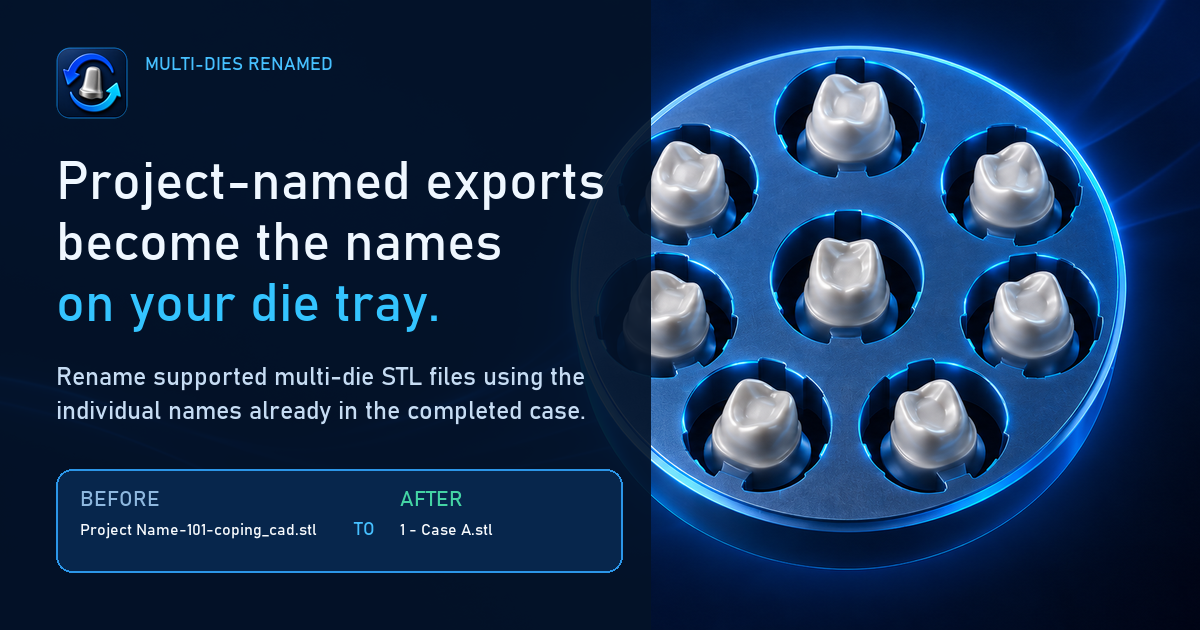 ▶ Watch the 57-second workflow demo
Simple by design
Keep the completed .dentalProject and supported -coping_cad.stl or -inlay_cad.stl files in the case folder.
Choose the project file or drag it straight from File Explorer into the app.
Arrange your filename fields, check the live preview and run the rename operation.
Built around real case folders
Focused tools for one repetitive part of the multi-die workflow.
Choose and reorder die number, multi-die name, project name, material and date.
Restore original names and locations from your rolling 15-case History list.
Archive source files in Original Files, or rename them in place while leaving the rest of the folder alone.
Case files stay on your PC. The app does not upload geometry or require a separate account.
Good to know
Multi-Dies Renamed is a focused file-naming utility, not a general STL converter.
No. It is designed for supported completed multi-die exports with matching -coping_cad.stl or -inlay_cad.stl files and a readable .dentalProject.
It uses the multi-die name already entered for each project position. If that description contains a dentist and patient name, it can become part of the filename.
No. It names and organises files; it does not edit their geometry. Always verify files before manufacture.
No. It is an independent Windows application that works with supported completed exports.
Practical guidance
Short, plain-English guides for the file-naming part of an exocad multi-die case.
Ready when your next tray is
Try the complete workflow for seven days before deciding whether to keep it.